See the Digital Signage Templates StrandVision Supports
StrandVision Digital Signage has many standard types of digital signage templates available for you to add to your digital signage pages.
Expanding the settings area shows how you can customize the template to personalize it to your preferences. If you do not see the template here,
additional ones can be quickly and cost effectively created by contacting us at .
Our system has multiple user levels. The following color codes show when each setting appears.
Black is for Beginner
Blue is for Intermediate (also shows Beginner)
Red is for Advanced (also shows Intermediate and Beginner)
Title: (Text Input - An optional Title to introduce your digital signage content)
SubTitle: (Text Input - The optional subtitle contains additional introduction text that is around 25% smaller than the title.)
Title Color: (Color Input - An optional HTML color setting for the title and subtitle. Leave blank to use the default heading color.)
Show: (Pick List - Determines whether your company vision or company description is displayed.)
Font Size: (Small/Medium/Large - Determines the relative size of the heading and paragraph body before auto sizing.)
Paragraph Alignment: (Left/Center/Right - Determines how your text content is aligned on the screen.)
Scrolling Speed: (No Scroll/1 - Very Slow/2/3 - Slow/4/5 - Medium/6/7 - Fast/8/9 - Very Fast - Specify the speed that you want your text content to move. None fills the screen with your text and does not scroll.)
QR Code: (None/Open Web Site/Bookmark Web Site/Call Phone Number - Create a QR code that can be used by mobile phones)
QR Code Info: (Text Input - Create a QR code that can be used by mobile phones)
Title: (Text Input - An optional Title to introduce your digital signage content)
SubTitle: (Text Input - The optional subtitle contains additional introduction text that is around 25% smaller than the title.)
Title Color: (Color Input - An optional HTML color setting for the title and subtitle. Leave blank to use the default heading color.)
Use Full Screen: (Yes/No - When checked, the company information will use the full screen. If not, it will display in the normal viewing area of the template.)
QR Code: (None/Open Web Site/Bookmark Web Site/Call Phone Number - Create a QR code that can be used by mobile phones)
QR Code Info: (Text Input - Create a QR code that can be used by mobile phones)
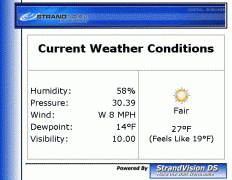
Weather-Current Condition
The Weather-Current Condition page displays the conditions for the zip code that you set up in the Profile Settings area. If you enter `$name` in the title, it will be replaced by the city. This is an optional add-on service provided by StrandVision Digital Signage.
Title: (Text Input - An optional Title to introduce your digital signage content)
SubTitle: (Text Input - The optional subtitle contains additional introduction text that is around 25% smaller than the title.)
Title Color: (Color Input - An optional HTML color setting for the title and subtitle. Leave blank to use the default heading color.)
Language: (English/Espaсol/Franзais - Select the language to display your weather.)
Show Source QR Code: (Yes/No - When checked, a QR Code will be generated to go to the source web site to get more details.)
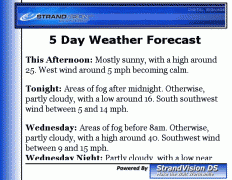
Weather-Forecast
The Weather-Forecast page displays the forecast for the zip code that you set up in the Profile Settings area. If you enter `$name` in the title, it will be replaced by the city. This is an optional add-on service provided by StrandVision Digital Signage.
Title: (Text Input - An optional Title to introduce your digital signage content)
SubTitle: (Text Input - The optional subtitle contains additional introduction text that is around 25% smaller than the title.)
Title Color: (Color Input - An optional HTML color setting for the title and subtitle. Leave blank to use the default heading color.)
Language: (English/Espaсol/Franзais - Select the language to display your weather.)
Show Summary Forecast: (Yes/No - Summary Forecast)
Scrolling Speed: (No Scroll/1 - Very Slow/2/3 - Slow/4/5 - Medium/6/7 - Fast/8/9 - Very Fast - Specify the speed that you want your text content to move. None fills the screen with your text and does not scroll.)
Items To Display: (Number Input - Enter the number of individual items (days) that you would like displayed.)
Photo/Image: (Up to 1 - Upload a photo or image that also displays with your digital signage content.)
Photo/Image Position: (Random/Left/Top/Right/Bottom - Select where you want your additional image to be placed on your screen.)
Show Source QR Code: (Yes/No - When checked, a QR Code will be generated to go to the source web site to get more details.)
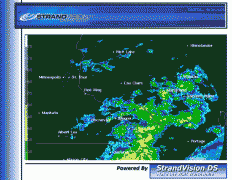
Weather-Radar
The Weather-Radar page displays the radar for the zip code that you set up in the Profile Settings area. If you enter `$name` in the title, it will be replaced by the city. This is an optional add-on service provided by StrandVision Digital Signage.
Title: (Text Input - An optional Title to introduce your digital signage content)
SubTitle: (Text Input - The optional subtitle contains additional introduction text that is around 25% smaller than the title.)
Title Color: (Color Input - An optional HTML color setting for the title and subtitle. Leave blank to use the default heading color.)
Remove Inactive Radar: (Yes/No - When checked, if there is no precipitation to show, the page is automatically skipped.)
Use Full Screen: (Yes/No - When checked, the radar will use the full screen. If not, it will display in the normal viewing area of the template.)
Show Source QR Code: (Yes/No - When checked, a QR Code will be generated to go to the source web site to get more details.)
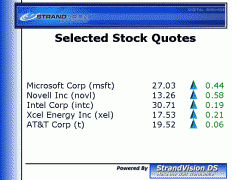
Stocks-Summary Quotes
The Stocks-Summary Quotes page displays the last price and amount of change for up to five stocks that you specify by their NYSE or NASDAQ symbol. Click on http://finance.yahoo.com/l to lookup a symbol name. This is an optional add-on service provided by StrandVision Digital Signage.
Title: (Text Input - An optional Title to introduce your digital signage content)
SubTitle: (Text Input - The optional subtitle contains additional introduction text that is around 25% smaller than the title.)
Title Color: (Color Input - An optional HTML color setting for the title and subtitle. Leave blank to use the default heading color.)
Stock Symbol 1: (Text Input - Enter the stock exchange symbol (typically 1 to 5 characters) for the stock you want to display.)
. . . .
Show Source QR Code: (Yes/No - When checked, a QR Code will be generated to go to the source web site to get more details.)
Stocks-Detailed
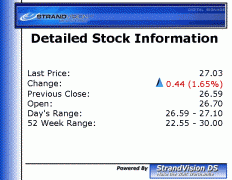
The Stocks-Detailed page displays detailed open, close, last and change in price, the day's price range and the 52 week price range for a stock that you specify by their NYSE or NASDAQ symbol. If you enter `$name` in the title, it will be replaced by the stock company name. Click on http://finance.yahoo.com/l to lookup a symbol name. This is an optional add-on service provided by StrandVision Digital Signage.
Title: (Text Input - An optional Title to introduce your digital signage content)
SubTitle: (Text Input - The optional subtitle contains additional introduction text that is around 25% smaller than the title.)
Title Color: (Color Input - An optional HTML color setting for the title and subtitle. Leave blank to use the default heading color.)
Stock Symbol : (Text Input - Enter the stock exchange symbol (typically 1 to 5 characters) for the stock you want to display.)
Show Source QR Code: (Yes/No - When checked, a QR Code will be generated to go to the source web site to get more details.)
Stocks-Chart
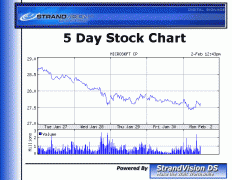
The Stocks-Chart page displays a 5 day chart for a stock that you specify by their NYSE or NASDAQ symbol. If you enter `$name` in the title, it will be replaced by the stock company name. Click on http://finance.yahoo.com/l to lookup a symbol name. This is an optional add-on service provided by StrandVision Digital Signage.
Title: (Text Input - An optional Title to introduce your digital signage content)
SubTitle: (Text Input - The optional subtitle contains additional introduction text that is around 25% smaller than the title.)
Title Color: (Color Input - An optional HTML color setting for the title and subtitle. Leave blank to use the default heading color.)
Stock Symbol : (Text Input - Enter the stock exchange symbol (typically 1 to 5 characters) for the stock you want to display.)
Show Source QR Code: (Yes/No - When checked, a QR Code will be generated to go to the source web site to get more details.)
Currency Rates
The Currency Rates page allows an international currency to be displayed based on either the daily 12 noon buying rates in New York (certified by the New York Federal Reserve Bank for customs purposes) or alternatively from the Bank of Canada. The rate that displays can be marked up by a certain percentage as well. A disclosure comment is available in small print for up to 2 lines to address legal issues regarding the currency. The data were obtained from sources believed to be reliable but there is no guarantee of their accuracy, completeness or correctness. This is an optional add-on service provided by StrandVision Digital Signage.
Title: (Text Input - An optional Title to introduce your digital signage content)
SubTitle: (Text Input - The optional subtitle contains additional introduction text that is around 25% smaller than the title.)
Title Color: (Color Input - An optional HTML color setting for the title and subtitle. Leave blank to use the default heading color.)
Show Using This Currency: (Argentine (ARS)/Australian Dollar (AUD)/Bahamian Dollar (BSD)/Brazil Real (BRL)/British Pound (GBP)/CFA Franc (Africa) (XOF)/CFP Franc (Pacific) (XPF)/Canadian Dollar (CAD)/Chilean Peso (CLP)/Chinese Yuan Renminbi (CNY)/Colombian Peso (COP)/Croatian Kuna (HRK)/Czech Koruna (CZK)/Danish Krone (DKK)/East Caribbean Dollar (XCD)/European Monetary Union (EUR)/Fiji Dollar (FJD)/Ghanaian Cedi (GHS)/Guatemalan Quetzal (GTQ)/Honduran Lempira (NHL)/Hong Kong Dollar (HKD)/Hungarian Forint (HUF)/Icelandic Krona (ISK)/Indian Rupee (INR)/Indonesian Rupiah (IDR)/Jamaican Dollar (JMD)/Japanese Yen (JPY)/Malaysian Ringgit (MYR)/Mexican Peso (MXN)/Moroccan Dirham (MAD)/Myanmar Kyat (MMK)/Neth Antilles (ANG)/New Israeli Sheqel (ILS)/New Zealand Dollar (NZD)/Norwegian Krone (NOK)/Pakistan Rupee (PKR)/Panamanian Balboa (PAB)/Peruvian New Sol (PEN)/Philippine Peso (PHP)/Polish Zloty (PLN)/Romanian New Leu (RON)/Russian Rouble (RUB)/Saudi Arabian Riyal (SAR)/Serbian Dinar (RSD)/Singapore Dollar (SGD)/South African Rand (ZAR)/South Korean Won (KRW)/Sri Lanka Rupee (LKR)/Swedish Krona (SEK)/Swiss Franc (CHF)/Taiwanese NT Dollar (TWD)/Thai Baht (THB)/Trinidad & Tobago Dollar (TTD)/Tunisian Dinar (TND)/Turkish Lira (TRY)/UAE Dirham (AED)/US Dollar (USD)/Venezuelan Bolivar Fuerte (VEF)/Vietnamese Dong (VND) - All values are converted to this currency before showing.)
Currency To Display: (Argentine (ARS)/Australian Dollar (AUD)/Bahamian Dollar (BSD)/Brazil Real (BRL)/British Pound (GBP)/CFA Franc (Africa) (XOF)/CFP Franc (Pacific) (XPF)/Canadian Dollar (CAD)/Chilean Peso (CLP)/Chinese Yuan Renminbi (CNY)/Colombian Peso (COP)/Croatian Kuna (HRK)/Czech Koruna (CZK)/Danish Krone (DKK)/East Caribbean Dollar (XCD)/European Monetary Union (EUR)/Fiji Dollar (FJD)/Ghanaian Cedi (GHS)/Guatemalan Quetzal (GTQ)/Honduran Lempira (NHL)/Hong Kong Dollar (HKD)/Hungarian Forint (HUF)/Icelandic Krona (ISK)/Indian Rupee (INR)/Indonesian Rupiah (IDR)/Jamaican Dollar (JMD)/Japanese Yen (JPY)/Malaysian Ringgit (MYR)/Mexican Peso (MXN)/Moroccan Dirham (MAD)/Myanmar Kyat (MMK)/Neth Antilles (ANG)/New Israeli Sheqel (ILS)/New Zealand Dollar (NZD)/Norwegian Krone (NOK)/Pakistan Rupee (PKR)/Panamanian Balboa (PAB)/Peruvian New Sol (PEN)/Philippine Peso (PHP)/Polish Zloty (PLN)/Romanian New Leu (RON)/Russian Rouble (RUB)/Saudi Arabian Riyal (SAR)/Serbian Dinar (RSD)/Singapore Dollar (SGD)/South African Rand (ZAR)/South Korean Won (KRW)/Sri Lanka Rupee (LKR)/Swedish Krona (SEK)/Swiss Franc (CHF)/Taiwanese NT Dollar (TWD)/Thai Baht (THB)/Trinidad & Tobago Dollar (TTD)/Tunisian Dinar (TND)/Turkish Lira (TRY)/UAE Dirham (AED)/US Dollar (USD)/Venezuelan Bolivar Fuerte (VEF)/Vietnamese Dong (VND) - Enter the currency that you wish to show.)
.
Photo/Image: (Up to 1 - Upload a photo or image that also displays with your digital signage content.)
Photo/Image Position: (Random/Left/Top/Right/Bottom - Select where you want your additional image to be placed on your screen.)
Show Source QR Code: (Yes/No - When checked, a QR Code will be generated to go to the source web site to get more details.)
Dual Price / Rate
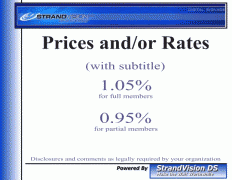
Useful for displaying one or two prices for stores or interest rates for financial institutions. It is most suited for one product or service with different pricing based on membership, etc. A description for each price discussing the reasons for the differences. A disclosure comment is available in small print for up to 2 lines to address legal issues regarding the pricing and/or discount. This is an optional add-on service provided by StrandVision Digital Signage.
Title: (Text Input - An optional Title to introduce your digital signage content)
SubTitle: (Text Input - The optional subtitle contains additional introduction text that is around 25% smaller than the title.)
Title Color: (Color Input - An optional HTML color setting for the title and subtitle. Leave blank to use the default heading color.)
Price/Rate 1: (Text Input - Specify the primary price or percentage rate that you want to display.)
Price 1 Description: (Text Input - Optional description to display below the text.)
Price/Rate 2: (Text Input - Specify the optional secondary price or percentage rate that you want to display.)
Price 2 Description: (Text Input - Optional description to display below the text.)
Comment/Disclosure: (Text Input - Optionally specify a one or two line comment or legal disclosure to be displayed in small text at the bottom of the screen.)
Price 1 Color: (Color Input - Optional HTML color setting for the text. Leave blank to use the default body color.)
Price 2 Color: (Color Input - Optional HTML color setting for the text. Leave blank to use the default body color.)
Comment Color: (Color Input - Optional HTML color setting for the text. Leave blank to use the default body color.)
Photo/Image: (Up to 1 - Upload a photo or image that also displays with your digital signage content.)
Photo/Image Position: (Random/Left/Top/Right/Bottom - Select where you want your additional image to be placed on your screen.)
QR Code: (Open Web Site/Bookmark Web Site/Call Phone Number - Create a QR code that can be used by mobile phones)
QR Code Info: (Text Input - Create a QR code that can be used by mobile phones)
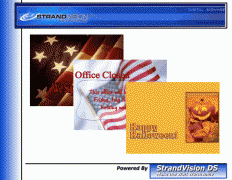
Random Photos / Images
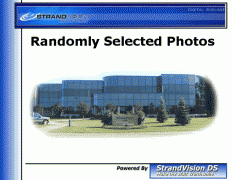
The Random Photos / Images page randomly displays one of up to ten available photos or images. Files are uploaded to the StrandVision Digital Signage server. If there is only one image specified, it will always be displayed. If there are more than one, the photo will be different each time the page is displayed.
Title: (Text Input - An optional Title to introduce your digital signage content)
SubTitle: (Text Input - The optional subtitle contains additional introduction text that is around 25% smaller than the title.)
Title Color: (Color Input - An optional HTML color setting for the title and subtitle. Leave blank to use the default heading color.)
Background Color: (Color Input - Lets you specify the background color)
First Image Title: (Yes/No - When checked, the first image will always be played with the remaining ones randomly selected)
Use Full Screen: (Yes/No - When checked, the photo image will use the full screen. If not, it will display in the normal viewing area of the template.)
Photo/Image: (Up to 10 - Upload up to 10 photos or images to be displayed on your digital signage.)
Clipping: (None - Fit Keep Aspect/Stretch - Fill Screen/Clip - Keep Aspect - Determines how to size the image for 4:3 and 16:9 aspect screens. None shrinks the image so that it fits entirely (white border on empty area). Stretch loses the aspect ratio and fills the width and height. Clip fills the screen while keeping the aspect ratio. Extra areas are removed.)
Photo Effect: (Automatic/No Effect/Grow/Shrink/Zoom In/Out/Left/Right/Top/Bottom/Scroll Slow/Scroll Medium/Scroll Fast - Allows you to specify how the photos will appear on the screen.)
QR Code: (Open Web Site/Bookmark Web Site/Call Phone Number - Create a QR code that can be used by mobile phones)
QR Code Placement: (Top Left/Top Center/Top Right/Middle Left/Middle Center/Middle Right/Bottom Left/Bottom Center/Bottom Right - Where the QR Code is placed over the top of your photo)
QR Code Info: (Text Input - Create a QR code that can be used by mobile phones)
Multiple Photos / Images
The Multiple Photos / Images page displays all of the available photos or images before advancing to the next page.
Title: (Text Input - An optional Title to introduce your digital signage content)
SubTitle: (Text Input - The optional subtitle contains additional introduction text that is around 25% smaller than the title.)
Title Color: (Color Input - An optional HTML color setting for the title and subtitle. Leave blank to use the default heading color.)
Use Full Screen: (Yes/No - When checked, the photo image will use the full screen. If not, it will display in the normal viewing area of the template.)
Photo/Image: (Up to 10 - Upload up to 10 photos or images to be displayed on your digital signage.)
Clipping: (None - Fit Keep Aspect/Stretch - Fill Screen/Clip - Keep Aspect - Determines how to size the image for 4:3 and 16:9 aspect screens. None shrinks the image so that it fits entirely (white border on empty area). Stretch loses the aspect ratio and fills the width and height. Clip fills the screen while keeping the aspect ratio. Extra areas are removed.)
Photo Effect: (Automatic/No Effect/Grow/Shrink/Zoom In/Out/Left/Right/Top/Bottom/Scroll Slow/Scroll Medium/Scroll Fast - Allows you to specify how the photos will appear on the screen.)
QR Code: (Open Web Site/Bookmark Web Site/Call Phone Number - Create a QR code that can be used by mobile phones)
QR Code Placement: (Top Left/Top Center/Top Right/Middle Left/Middle Center/Middle Right/Bottom Left/Bottom Center/Bottom Right - Where the QR Code is placed over the top of your photo)
QR Code Info: (Text Input - Create a QR code that can be used by mobile phones)
Remote Photo / Image
The Remote Photo / Image page displays a photo or image from a web site url. This can also be used by systems integrators to read from the player's hard drive. This is an optional add-on service provided by StrandVision Digital Signage.
Title: (Text Input - An optional Title to introduce your digital signage content)
SubTitle: (Text Input - The optional subtitle contains additional introduction text that is around 25% smaller than the title.)
Title Color: (Color Input - An optional HTML color setting for the title and subtitle. Leave blank to use the default heading color.)
Background Color: (Color Input - Lets you specify the background color)
Use Full Screen: (Yes/No - When checked, the photo image will use the full screen. If not, it will display in the normal viewing area of the template.)
Photo/Image Path: (Text Input - Enter the path for the photo or image that may be displayed.)
Clipping: (None - Fit Keep Aspect/Stretch - Fill Screen/Clip - Keep Aspect - Determines how to size the image for 4:3 and 16:9 aspect screens. None shrinks the image so that it fits entirely (white border on empty area). Stretch loses the aspect ratio and fills the width and height. Clip fills the screen while keeping the aspect ratio. Extra areas are removed.)
QR Code: (Open Web Site/Bookmark Web Site/Call Phone Number - Create a QR code that can be used by mobile phones)
QR Code Placement: (Top Left/Top Center/Top Right/Middle Left/Middle Center/Middle Right/Bottom Left/Bottom Center/Bottom Right - Where the QR Code is placed over the top of your photo)
QR Code Info: (Text Input - Create a QR code that can be used by mobile phones)
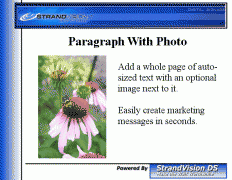
Paragraph-Fixed
The Paragraph-Fixed page displays several lines of information on the screen with an optional photo or image. The text is auto-sized to fit in the available screen space. If there is a lot of text, select the scrolling paragraph.
Title: (Text Input - An optional Title to introduce your digital signage content)
SubTitle: (Text Input - The optional subtitle contains additional introduction text that is around 25% smaller than the title.)
Title Color: (Color Input - An optional HTML color setting for the title and subtitle. Leave blank to use the default heading color.)
Paragraph Color: (Color Input - Optional HTML color setting for the text. Leave blank to use the default body color.)
Background Color: (Color Input - Lets you specify the background color)
Paragraph Content: (Text Input - )
Use Full Screen: (Yes/No - When checked, the paragraph will use the full screen. If not, it will display in the normal viewing area of the template.)
Bulleted List: (Yes/No - When checked, this will add a bullet to the first 40 characters of the first 10 filled lines)
Paragraph Alignment: (Left/Center/Right - Determines how your text content is aligned on the screen.)
Font Size: (Small/Medium/Large - Determines the relative size of the heading and paragraph body before auto sizing.)
Text Effect: (None/Shadow/Emboss/Emboss / Shadow/Outline - Select how your text appears on the screen.)
Photo/Image: (Up to 1 - Upload a photo or image that also displays with your digital signage content.)
Photo/Image Position: (Random/Left/Top/Right/Bottom/Background - Select where you want your additional image to be placed on your screen.)
QR Code: (Open Web Site/Bookmark Web Site/Call Phone Number - Create a QR code that can be used by mobile phones)
QR Code Info: (Text Input - Create a QR code that can be used by mobile phones)
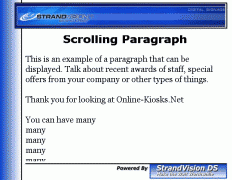
Paragraph-Scrolling
The Paragraph-Scrolling page has a scrolling display where unlimited lines of information is displayed up or down on the screen. The speed can be changed to reduce the time it takes to display all the information. This is an optional add-on service provided by StrandVision Digital Signage.
Title: (Text Input - An optional Title to introduce your digital signage content)
SubTitle: (Text Input - The optional subtitle contains additional introduction text that is around 25% smaller than the title.)
Title Color: (Color Input - An optional HTML color setting for the title and subtitle. Leave blank to use the default heading color.)
Paragraph Color: (Color Input - Optional HTML color setting for the text. Leave blank to use the default body color.)
Background Color: (Color Input - Lets you specify the background color)
Paragraph Content: (Text Input - )
Use Full Screen: (Yes/No - When checked, the paragraph will use the full screen. If not, it will display in the normal viewing area of the template.)
Direction: (Up/Down - Specify the direction that you want the text to move.)
Scrolling Speed: (No Scroll/1 - Very Slow/2/3 - Slow/4/5 - Medium/6/7 - Fast/8/9 - Very Fast - Specify the speed that you want your text content to move. None fills the screen with your text and does not scroll.)
Paragraph Alignment: (Left/Center/Right - Determines how your text content is aligned on the screen.)
Font Size: (Small/Medium/Large - Determines the relative size of the heading and paragraph body before auto sizing.)
Text Effect: (None/Shadow/Emboss/Emboss / Shadow/Outline - Select how your text appears on the screen.)
Photo/Image: (Up to 1 - Upload a photo or image that also displays with your digital signage content.)
Photo/Image Position: (Random/Left/Top/Right/Bottom/Background - Select where you want your additional image to be placed on your screen.)
QR Code: (Open Web Site/Bookmark Web Site/Call Phone Number - Create a QR code that can be used by mobile phones)
QR Code Info: (Text Input - Create a QR code that can be used by mobile phones)
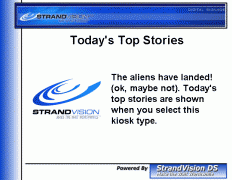
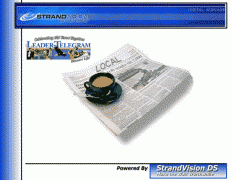
RSS / XML Feed
Allows an XML / RSS feed from another web site to be used. Please ensure that the site allows your legal use of their information. Any site that has the or symbol or other RSS feed can be used. To add a username and password, enter the url as http://username:password@url. Click on the XML or RSS feed button, copy the url at the top of your web browser into the RSS Feed URL below. The server will retrieve this information and will randomly select one of the items when the page is displayed. $rssfeedoptions$ This is an optional add-on service provided by StrandVision Digital Signage.
Title: (Text Input - An optional Title to introduce your digital signage content)
SubTitle: (Text Input - The optional subtitle contains additional introduction text that is around 25% smaller than the title.)
Title Color: (Color Input - An optional HTML color setting for the title and subtitle. Leave blank to use the default heading color.)
RSS Feed URL: (Web URL Address - The RSS feed web address (default is http://rss.news.yahoo.com/rss/topstories).)
Default Photo/Image: (Up to 1 - Photo that will be used if there is not one specified in the RSS feed. You can click the browse button to upload the file or enter another website URL.)
Photo/Image Position: (Random/Left/Top/Right/Bottom - Select where you want your additional image to be placed on your screen.)
Paragraph Alignment: (Left/Center/Right - Determines how your text content is aligned on the screen.)
Date Filter: (Show All/Yesterday/Today/Tomorrow/This Week/Next Week/Past 4 Hours/Past 8 Hours/Past 24 Hours/Past 48 Hours/Past 72 Hours/Past 7 Days/Past 30 Days/Past 3 Months/Past 6 Months/Past 12 Months/Next 4 Hours/Next 8 Hours/Next 24 Hours/Next 48 Hours/Next 72 Hours/Next 7 Days/Next 30 Days/Next 3 Months/Next 6 Months/Next 12 Months - Allows for selection of all items, or past or future date ranges from the feed.)
Use Full Screen: (Yes/No - When checked, the article will use the full screen. If not, it will display in the normal viewing area of the template.)
Scroll All Records: (Yes/No - When checked, the rss feed will display as a scrolling paragraph and show all records in date order. This is not recommended unless using for a room schedule.)
Show Source QR Code: (Yes/No - When checked, a QR Code will be generated to go to the source web site to get more details.)
Web Page Capture
Allows an external web site to be displayed as an image. Any web page can be captured and you can display the full page or select a specific region of the page. To add a username and password, enter the url as http://username:password@url. The server will capture the photo at the frequency you specify, however frequencies faster than 15 minutes require the StrandVision Linux Digital Media Player. This is an optional add-on service provided by StrandVision Digital Signage.
Title: (Text Input - An optional Title to introduce your digital signage content)
SubTitle: (Text Input - The optional subtitle contains additional introduction text that is around 25% smaller than the title.)
Title Color: (Color Input - An optional HTML color setting for the title and subtitle. Leave blank to use the default heading color.)
Background Color: (Color Input - Lets you specify the background color)
Web Page URL: (Web URL Address - The web page address (default is http://here.com/traffic/usa/) that will be read.)
Scrolling Speed: (No Scroll/1 - Very Slow/2/3 - Slow/4/5 - Medium/6/7 - Fast/8/9 - Very Fast - Specify the speed that you want your text content to move. None fills the screen with your text and does not scroll.)
Use Full Screen: (Yes/No - When checked, the people information will use the full screen. If not, it will display in the normal viewing area of the template.)
Time Between Updates: (Number Input - How frequently the web site is captured.)
Top Offset: (Number Input - This sets the number of pixels (based on a 1360 pixel photo width) to remove from the top of the image.)
Bottom Offset: (Number Input - This sets the number of pixels (based on a 1360 pixel photo width) to remove from the bottom of the image.)
Extra Delay: (Number Input - Enter the delay in seconds before the action completes)
Scrolling Speed: (No Scroll/1 - Very Slow/2/3 - Slow/4/5 - Medium/6/7 - Fast/8/9 - Very Fast - Specify the speed that you want your text content to move. None fills the screen with your text and does not scroll.)
Title: (Text Input - An optional Title to introduce your digital signage content)
SubTitle: (Text Input - The optional subtitle contains additional introduction text that is around 25% smaller than the title.)
Title Color: (Color Input - An optional HTML color setting for the title and subtitle. Leave blank to use the default heading color.)
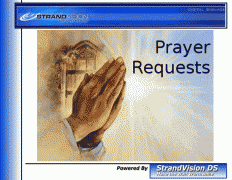
Date Filter: (Show All/Yesterday/Today/This Week/Past 4 Hours/Past 8 Hours/Past 24 Hours/Past 48 Hours/Past 72 Hours/Past 7 Days/Past 30 Days/Past 3 Months/Past 6 Months/Past 12 Months - Allows for selection of all prayers, or past date ranges from the feed.)
Show Source QR Code: (Yes/No - When checked, a QR Code will be generated to go to the source web site to get more details.)
Communication Library
The Communications Campaign Library Designed for both employee communication and general public audiences the Communications Campaign Library motivates, educates and informs digital signage viewers while demonstrating your commitment to long-term and worthwhile green initiatives. Each theme includes 50+ attractive, impactful animated messages that are randomly selected. $category$ will be replaced with the trivia category if found in the title. This is an optional add-on service provided by StrandVision Digital Signage.
Title: (Text Input - An optional Title to introduce your digital signage content)
SubTitle: (Text Input - The optional subtitle contains additional introduction text that is around 25% smaller than the title.)
Title Color: (Color Input - An optional HTML color setting for the title and subtitle. Leave blank to use the default heading color.)
Campaign Category: (Pick List - Select the Animated Communications Campaign Library category to display. Each category includes 50+ attractive, impactful animated messages that are randomly selected.)
Campaign Keyword: (Pick List - Select from the available keywords for the selected Communications Campaign Library category.)
Scrolling Speed: (No Scroll/1 - Very Slow/2/3 - Slow/4/5 - Medium/6/7 - Fast/8/9 - Very Fast - Specify the speed that you want your text content to move. None fills the screen with your text and does not scroll.)
Use Full Screen: (Yes/No - When checked, the paragraph will use the full screen. If not, it will display in the normal viewing area of the template.)
Title: (Text Input - An optional Title to introduce your digital signage content)
SubTitle: (Text Input - The optional subtitle contains additional introduction text that is around 25% smaller than the title.)
Title Color: (Color Input - An optional HTML color setting for the title and subtitle. Leave blank to use the default heading color.)
Date Format: (None/MM/DD/YYYY (4/24/2024)/DD/MM/YYYY (24/04/2024)/(Wednesday, April 24, 2024)/(Wednesday, 24 April, 2024)/(Wednesday, April 24)/(Wednesday, 24 April) - Select the format that the date will be displayed in.)
Time Format: (12 Hour without Seconds (2:22)/24 Hour without Seconds (02:22)/12 Hour with Seconds (2:22:51)/24 Hour with Seconds (02:22:51)/Analog - Select the format that the time will be displayed in.)
Add Temperature: (Yes/No - Add Current Temperature to the Page)
Photo/Image: (Up to 1 - Upload a photo or image that also displays with your digital signage content.)
Photo/Image Position: (Random/Left/Top/Right/Bottom - Select where you want your additional image to be placed on your screen.)
Use Full Screen: (Yes/No - When checked, the clock will use the full screen. If not, it will display in the normal viewing area of the template.)
QR Code: (Open Web Site/Bookmark Web Site/Call Phone Number - Create a QR code that can be used by mobile phones)
QR Code Info: (Text Input - Create a QR code that can be used by mobile phones)
Count Up/Down
The Count Up/Down page displays a message before and another message after the current date and time. This useful for announcing the time until a meeting starts or the time since the last accident for safety reporting This is an optional add-on service provided by StrandVision Digital Signage.
Title: (Text Input - An optional Title to introduce your digital signage content)
SubTitle: (Text Input - The optional subtitle contains additional introduction text that is around 25% smaller than the title.)
Title Color: (Color Input - An optional HTML color setting for the title and subtitle. Leave blank to use the default heading color.)
Event Date and Time: (Date/Time - The date and time of the event to compare the current time with. Examples include a specific meeting or the last accident date and time)
Message for Before Event: (Text Input - The message that is displayed while the sign is displayed before the event. Examples are 'the meeting will start in:')
Message for After Event: (Text Input - The message that is displayed while the sign is displayed after the event. Examples are 'the meeting has been in progress for:' or 'no accidents for:')
Calculate Date Difference In: (Automatic/Hours/Days/Months/Years/Columns - Determines what unit of measure is applied to the calculated date/time difference.)
Time Elements to Display: (Number Input - Specify the maximum number of time elements to show. If it is 2 years, 3 months, 8 days, 4 hours, 2 minutes and 3 seconds, a resolution of 3 shows years, months and days and skips the rest.)
Photo/Image: (Up to 1 - Upload a photo or image that also displays with your digital signage content.)
Photo/Image Position: (Random/Left/Top/Right/Bottom - Select where you want your additional image to be placed on your screen.)
Estimate Counter
The Estimate Counter page calculates a number in real time to display informative information. Use it to show estimated electrical usage, population growth, people dying from smoking, etc. This is an optional add-on service provided by StrandVision Digital Signage.
Title: (Text Input - An optional Title to introduce your digital signage content)
SubTitle: (Text Input - The optional subtitle contains additional introduction text that is around 25% smaller than the title.)
Title Color: (Color Input - An optional HTML color setting for the title and subtitle. Leave blank to use the default heading color.)
Starting Date and Time: (Date/Time - The date and time that matches the starting number. An example is an electrical meter Last reading date.)
Ending Date and Time: (Date/Time - The date and time that matches the ending number. An example is an electrical meter Next read date.)
Starting Number: (Number Input - The starting number (ties to starting date) used for calculating the number to display. An example is the starting meter reading)
Ending Number: (Number Input - The ending number (ties to ending date) used for calculating the number to display. An example is the ending meter reading)
Format: (Text Input - An optional format to put additional text with the calculated number. The value `$result` is replaced with the calculated result. An examples is '$result KWH')
Photo/Image: (Up to 1 - Upload a photo or image that also displays with your digital signage content.)
Photo/Image Position: (Random/Left/Top/Right/Bottom - Select where you want your additional image to be placed on your screen.)
QR Code: (Open Web Site/Bookmark Web Site/Call Phone Number - Create a QR code that can be used by mobile phones)
QR Code Info: (Text Input - Create a QR code that can be used by mobile phones)
People Database
Automatically display visitors or employees from one of your custom people databases (most often a staff list for employee communication and motivation). This is an optional add-on service provided by StrandVision Digital Signage.
Title: (Text Input - An optional Title to introduce your digital signage content)
SubTitle: (Text Input - The optional subtitle contains additional introduction text that is around 25% smaller than the title.)
Title Color: (Color Input - An optional HTML color setting for the title and subtitle. Leave blank to use the default heading color.)
Use Full Screen: (Yes/No - When checked, the people information will use the full screen. If not, it will display in the normal viewing area of the template.)
Abbreviated Name: (Yes/No - Determines the type of information that is shown for each of your people.)
NickName: (Yes/No - Determines the type of information that is shown for each of your people.)
Show Time: (Yes/No - Determines the type of information that is shown for each of your people.)
Show Group: (Yes/No - Determines the type of information that is shown for each of your people.)
Show Location: (Yes/No - Determines the type of information that is shown for each of your people.)
Show Department: (Yes/No - Determines the type of information that is shown for each of your people.)
Show Title: (Yes/No - Determines the type of information that is shown for each of your people.)
Show Phone: (Yes/No - Determines the type of information that is shown for each of your people.)
Show Email: (Yes/No - Determines the type of information that is shown for each of your people.)
Report Type: (Birthdays/Anniversaries/Newly Hired/Leaving Soon/Random Individuals - Set the report type. Birthdays and Anniversaries select those within the time period. New Hires shows people recently hired. Leaving Soon shows people with an upcoming termination date. Random shows individual details of random people.)
Locations To Show: (Automatic - Determines which locations are looked at for the signage.)
Time Period To Show: (Today/Two Days/Three Days/One Week/Two Weeks/One Month - Determines the time period that is used for selecting records.)
Scrolling Speed: (No Scroll/1 - Very Slow/2/3 - Slow/4/5 - Medium/6/7 - Fast/8/9 - Very Fast - Specify the speed that you want your text content to move. None fills the screen with your text and does not scroll.)
Paragraph Alignment: (Left/Center/Right - Determines how your people appear on the screen.)
Font Size: (Small/Medium/Large - Determines the relative size of the heading and paragraph body before auto sizing.)
User Database Counter
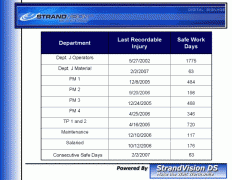
The User Database Counter page reads all records from one of your user databases. Each line is displayed in a table format and the number of months, days or hours since the database date displays in real time. If there are too many database records to display on one screen, the information will scroll. This is useful for automatically showing plant safety statistics for all departments on one screen. If you put $totrec$ in your title, it will be replaced with the number of records in your database. This is an optional add-on service provided by StrandVision Digital Signage.
Title: (Text Input - An optional Title to introduce your digital signage content)
SubTitle: (Text Input - The optional subtitle contains additional introduction text that is around 25% smaller than the title.)
Title Color: (Color Input - An optional HTML color setting for the title and subtitle. Leave blank to use the default heading color.)
Database To Use: (Pick List - Select the database that you wish to select information from.)
Sort By: (Pick List - Select the database field that you wish to sort the information by.)
Sort Descending: (Yes/No - Sort the values in descending order.)
Filter By: (Pick List - Filter those database records that match the value in the next field.)
Filter Value: (Text Input - Enter the value to match the above field. If a date, this is the hours from now.)
Counter Column Heading: (Text Input - The required heading for the calculated counter result.)
Font Size: (Small/Medium/Large - Determines the relative size of the heading and paragraph body before auto sizing.)
Calculate Date Difference In: (Automatic/Hours/Days/Months/Years/Columns - Determines what unit of measure is applied to the calculated date/time difference.)
User Database Table
The User Database Table page reads all records from one of your user defined databases. Each line is displayed in a table format. If there are too many database records to display on one screen, the information will scroll. Database records that are old or new can be removed from the display if desired. If you put $totrec$ in your title, it will be replaced with the number of records in your database. This is an optional add-on service provided by StrandVision Digital Signage.
Title: (Text Input - An optional Title to introduce your digital signage content)
SubTitle: (Text Input - The optional subtitle contains additional introduction text that is around 25% smaller than the title.)
Title Color: (Color Input - An optional HTML color setting for the title and subtitle. Leave blank to use the default heading color.)
Database To Use: (Pick List - Select the database that you wish to select information from.)
Sort By: (Pick List - Select the database field that you wish to sort the information by.)
Sort Descending: (Yes/No - Sort the values in descending order.)
Filter By: (Pick List - Filter those database records that match the value in the next field.)
Filter Value: (Text Input - Enter the value to match the above field. If a date, this is the hours from now.)
User Database List
The User Database List page reads all records from one of your user defined databases. Each line is displayed in scrolling paragraph format. Database records that are old or new can be removed from the display if desired. If you put $totrec$ in your title, it will be replaced with the number of records in your database. This is an optional add-on service provided by StrandVision Digital Signage.
Title: (Text Input - An optional Title to introduce your digital signage content)
SubTitle: (Text Input - The optional subtitle contains additional introduction text that is around 25% smaller than the title.)
Title Color: (Color Input - An optional HTML color setting for the title and subtitle. Leave blank to use the default heading color.)
Scrolling Speed: (No Scroll/1 - Very Slow/2/3 - Slow/4/5 - Medium/6/7 - Fast/8/9 - Very Fast - Specify the speed that you want your text content to move. None fills the screen with your text and does not scroll.)
Paragraph Alignment: (Left/Center/Right - Determines how your text content is aligned on the screen.)
Font Size: (Small/Medium/Large - Determines the relative size of the heading and paragraph body before auto sizing.)
Database To Use: (Pick List - Select the database that you wish to select information from.)
Sort By: (Pick List - Select the database field that you wish to sort the information by.)
Sort Descending: (Yes/No - Sort the values in descending order.)
Filter By: (Pick List - Filter those database records that match the value in the next field.)
Filter Value: (Text Input - Enter the value to match the above field. If a date, this is the hours from now.)
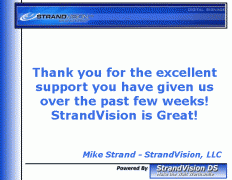
Random User Database
Select a random record from one of your user defined databases (possibly customer testimonials). If you put `$totrec` in your title, it will be replaced with the number of records in your database. Entering `$currec` will display the current record number. This is an optional add-on service provided by StrandVision Digital Signage.
Title: (Text Input - An optional Title to introduce your digital signage content)
SubTitle: (Text Input - The optional subtitle contains additional introduction text that is around 25% smaller than the title.)
Title Color: (Color Input - An optional HTML color setting for the title and subtitle. Leave blank to use the default heading color.)
Database To Use: (Pick List - Select the database that you wish to select information from.)
Paragraph Alignment: (Left/Center/Right - Determines how your text content is aligned on the screen.)
Font Size: (Small/Medium/Large - Determines the relative size of the heading and paragraph body before auto sizing.)
Filter By: (Pick List - Filter those database records that match the value in the next field.)
Filter Value: (Text Input - Enter the value to match the above field. If a date, this is the hours from now.)
Number to Show: (Text Input - Select the number of records to show)
Scrolling Speed: (No Scroll/1 - Very Slow/2/3 - Slow/4/5 - Medium/6/7 - Fast/8/9 - Very Fast - Specify the speed that you want your text content to move. None fills the screen with your text and does not scroll.)
Title: (Text Input - An optional Title to introduce your digital signage content)
SubTitle: (Text Input - The optional subtitle contains additional introduction text that is around 25% smaller than the title.)
Title Color: (Color Input - An optional HTML color setting for the title and subtitle. Leave blank to use the default heading color.)
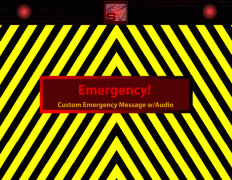
Emergency Level: (Highest Alert/Medium Alert/Low Level Alert - Selects the emergency alert level that is about to be broadcast.)
Volume: (No Sound/1 - Very Soft/2/3 - Soft/4/5 - Normal/6/7 - Loud/8/9 - Very Loud - The volume level as a percent of the pc's speaker setting - 5 = 100% sound level.)
QR Code: (Open Web Site/Bookmark Web Site/Call Phone Number - Create a QR code that can be used by mobile phones)
QR Code Info: (Text Input - Create a QR code that can be used by mobile phones)
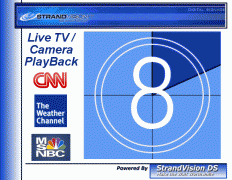
Local TV/Camera Playback
Allows playback of television channels or external video cameras (including web-cams) that are locally connected to the playback computer through a MSI Vox (or any Windows recognized) video capture device. This is an optional add-on service provided by StrandVision Digital Signage.
Title: (Text Input - An optional Title to introduce your digital signage content)
SubTitle: (Text Input - The optional subtitle contains additional introduction text that is around 25% smaller than the title.)
Title Color: (Color Input - An optional HTML color setting for the title and subtitle. Leave blank to use the default heading color.)
Background Color: (Color Input - Lets you specify the background color)
Use Full Screen: (Yes/No - When checked, the camera or television feed will use the full screen portion of the template. If not, it will display in the normal viewing area of the template.)
QR Code: (Open Web Site/Bookmark Web Site/Call Phone Number - Create a QR code that can be used by mobile phones)
QR Code Placement: (Top Left/Top Center/Top Right/Middle Left/Middle Center/Middle Right/Bottom Left/Bottom Center/Bottom Right - Where the QR Code is placed over the top of your photo)
QR Code Info: (Text Input - Create a QR code that can be used by mobile phones)
Title: (Text Input - An optional Title to introduce your digital signage content)
SubTitle: (Text Input - The optional subtitle contains additional introduction text that is around 25% smaller than the title.)
Title Color: (Color Input - An optional HTML color setting for the title and subtitle. Leave blank to use the default heading color.)
Background Color: (Color Input - Lets you specify the background color)
Video Files To Use: (Pick List - Select the video file that you wish to play which has been installed to your account.)
Clipping: (None - Fit Keep Aspect/Stretch - Fill Screen/Clip - Keep Aspect - Determines how to size the image for 4:3 and 16:9 aspect screens. None shrinks the image so that it fits entirely (white border on empty area). Stretch loses the aspect ratio and fills the width and height. Clip fills the screen while keeping the aspect ratio. Extra areas are removed.)
Play Button Caption: (Text Input - This caption appears under the play button whenever it appears (non-production playback))
Use Full Screen: (Yes/No - When checked, the video file will use the full screen portion of the template. If not, it will display in the normal viewing area of the template.)
QR Code: (Open Web Site/Bookmark Web Site/Call Phone Number - Create a QR code that can be used by mobile phones)
QR Code Placement: (Top Left/Top Center/Top Right/Middle Left/Middle Center/Middle Right/Bottom Left/Bottom Center/Bottom Right - Where the QR Code is placed over the top of your photo)
QR Code Info: (Text Input - Create a QR code that can be used by mobile phones)
Random Music Videos
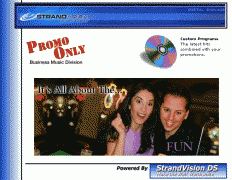
Allows playback of random music videos provided by Promo Only in a specified subdirectory. This is an optional add-on service provided by StrandVision Digital Signage.
Title: (Text Input - An optional Title to introduce your digital signage content)
SubTitle: (Text Input - The optional subtitle contains additional introduction text that is around 25% smaller than the title.)
Title Color: (Color Input - An optional HTML color setting for the title and subtitle. Leave blank to use the default heading color.)
Video File Directory: (Directory - Enter the directory name where the music videos are stored.)
Use Full Screen: (Yes/No - When checked, the video file will use the full screen portion of the template. If not, it will display in the normal viewing area of the template.)
Animated PowerPoint File
Allows you to select from PowerPoint files that have been converted with full animation to be used by your streaming video subscription This is an optional add-on service provided by StrandVision Digital Signage.
Title: (Text Input - An optional Title to introduce your digital signage content)
SubTitle: (Text Input - The optional subtitle contains additional introduction text that is around 25% smaller than the title.)
Title Color: (Color Input - An optional HTML color setting for the title and subtitle. Leave blank to use the default heading color.)
Animation To Use: (Pick List - Select one animated PowerPoint files that are converted and installed to your account.)
Clipping: (None - Fit Keep Aspect/Stretch - Fill Screen/Clip - Keep Aspect - Determines how to size the image for 4:3 and 16:9 aspect screens. None shrinks the image so that it fits entirely (white border on empty area). Stretch loses the aspect ratio and fills the width and height. Clip fills the screen while keeping the aspect ratio. Extra areas are removed.)
Use Full Screen: (Yes/No - When checked, the video file will use the full screen portion of the template. If not, it will display in the normal viewing area of the template.)
QR Code: (Open Web Site/Bookmark Web Site/Call Phone Number - Create a QR code that can be used by mobile phones)
QR Code Placement: (Top Left/Top Center/Top Right/Middle Left/Middle Center/Middle Right/Bottom Left/Bottom Center/Bottom Right - Where the QR Code is placed over the top of your photo)
QR Code Info: (Text Input - Create a QR code that can be used by mobile phones)
Security Camera
Display a screen grab from a web enabled video or still camera. This needs the Linux PC if the camera is inside of your firewall. This is an optional add-on service provided by StrandVision Digital Signage.
Title: (Text Input - An optional Title to introduce your digital signage content)
SubTitle: (Text Input - The optional subtitle contains additional introduction text that is around 25% smaller than the title.)
Title Color: (Color Input - An optional HTML color setting for the title and subtitle. Leave blank to use the default heading color.)
Video File Path: (Text Input - Enter the complete path for the video file that was created by StrandVision.)
Use Full Screen: (Yes/No - When checked, the video file will use the full screen portion of the template. If not, it will display in the normal viewing area of the template.)
Clipping: (None - Fit Keep Aspect/Stretch - Fill Screen/Clip - Keep Aspect - Determines how to size the image for 4:3 and 16:9 aspect screens. None shrinks the image so that it fits entirely (white border on empty area). Stretch loses the aspect ratio and fills the width and height. Clip fills the screen while keeping the aspect ratio. Extra areas are removed.)
Title: (Text Input - An optional Title to introduce your digital signage content)
SubTitle: (Text Input - The optional subtitle contains additional introduction text that is around 25% smaller than the title.)
Title Color: (Color Input - An optional HTML color setting for the title and subtitle. Leave blank to use the default heading color.)
Use Full Screen: (Yes/No - When checked, the video file will use the full screen portion of the template. If not, it will display in the normal viewing area of the template.)
Hyatt Stock Price
The Hyatt Stock Price page displays the last price for Hyatt from the url https://investors.hyatt.com. If you enter `$name` in the title, it will be replaced by the stock name. This is an optional add-on service provided by StrandVision Digital Signage.
Title: (Text Input - An optional Title to introduce your digital signage content)
SubTitle: (Text Input - The optional subtitle contains additional introduction text that is around 25% smaller than the title.)
Title Color: (Color Input - An optional HTML color setting for the title and subtitle. Leave blank to use the default heading color.)
Show Source QR Code: (Yes/No - When checked, a QR Code will be generated to go to the source web site to get more details.)
TownCare Recognation
The TownCare Recognation page displays the current Recognation statistics from the url https://towncare.achievers.com/api/v1/program/stats/get/jsonp This is an optional add-on service provided by StrandVision Digital Signage.
Title: (Text Input - An optional Title to introduce your digital signage content)
SubTitle: (Text Input - The optional subtitle contains additional introduction text that is around 25% smaller than the title.)
Title Color: (Color Input - An optional HTML color setting for the title and subtitle. Leave blank to use the default heading color.)
Hyatt Meeting Rooms
The Hyatt Meeting Rooms page displays today's meeting room reservations from the Envision Readerboard system which are active and set to publish for your Hyatt property. The following fields from the Title and subtitle will be replaced: $FACILITY$, $EVENTTYPE$, $FLOOR$, $GROUP$, $ROOM$, $DATE$ This is an optional add-on service provided by StrandVision Digital Signage.
Title: (Text Input - An optional Title to introduce your digital signage content)
SubTitle: (Text Input - The optional subtitle contains additional introduction text that is around 25% smaller than the title.)
Title Color: (Color Input - An optional HTML color setting for the title and subtitle. Leave blank to use the default heading color.)
Facility ID: (Text Input - )
Scrolling Speed: (No Scroll/1 - Very Slow/2/3 - Slow/4/5 - Medium/6/7 - Fast/8/9 - Very Fast - Specify the speed that you want your text content to move. None fills the screen with your text and does not scroll.)
Group By: (Pick List - Determines how the content is broken apart. Day is all on one scrolling page, Group shows a page per group and Room shows the room's schedule)
Font Size: (Small/Medium/Large - Determines the relative size of the heading and paragraph body before auto sizing.)
Message When No Events: (Text Input - If no events are available to show, the page is skipped if this is empty - otherwise this message is shown on the screen)
Only Current Events: (Yes/No - When checked, only active and future events are shown)
Use Full Screen: (Yes/No - When checked, the company information will use the full screen. If not, it will display in the normal viewing area of the template.)
Vigor Weather
The Vigor Weather page displays the current weather info for Ketchikan, Seattle and Portland This is an optional add-on service provided by StrandVision Digital Signage.
Title: (Text Input - An optional Title to introduce your digital signage content)
SubTitle: (Text Input - The optional subtitle contains additional introduction text that is around 25% smaller than the title.)
Title Color: (Color Input - An optional HTML color setting for the title and subtitle. Leave blank to use the default heading color.)
Dynamite Oil Change Price
The Dynamite Oil Change Price page displays the current oil change price and low price user for the Dynamite Autos Service Saver system This is an optional add-on service provided by StrandVision Digital Signage.
Title: (Text Input - An optional Title to introduce your digital signage content)
SubTitle: (Text Input - The optional subtitle contains additional introduction text that is around 25% smaller than the title.)
Title Color: (Color Input - An optional HTML color setting for the title and subtitle. Leave blank to use the default heading color.)
Report Type: (Pick List - Set the report type. Current Price shows the price (and it bumps up every 2 seconds). Previous Period shows the user who got the lowest price last month)
Photo/Image: (Up to 1 - Upload a photo or image that also displays with your digital signage content.)
Photo/Image Position: (Random/Left/Top/Right/Bottom - Select where you want your additional image to be placed on your screen.)
Use Full Screen: (Yes/No - When checked, the radar will use the full screen. If not, it will display in the normal viewing area of the template.)
We use cookies to facilitate, improve interactions and better understand how our services are used as described here. By continuing your visit to this site, you accept the use of cookies for the purposes above.
Got It
Your screen resolution is too low for running StrandVision.com pages. We are sorry for any inconvenience caused.

 Settings:
 or
or  symbol or other RSS feed can be used. To add a username and password, enter the url as http://username:password@url. Click on the XML or RSS feed button, copy the url at the top of your web browser into the RSS Feed URL below. The server will retrieve this information and will randomly select one of the items when the page is displayed. $rssfeedoptions$ This is an optional add-on service